
How to Open an Account in MetaTrader
The Forex market is one of the largest and most volatile financial markets in the world, with billions of dollars traded every day. You may also be looking for an opportunity to start trading and take advantage of this high potential market. The first step to entering Forex is opening an account on a reputable trading platform. MetaTrader (MT4 and MT5) is one of the best and most well known trading software platforms, used by millions of traders worldwide for analyzing and executing their trades. However, for beginners, the process of opening an account and using this platform can be a bit confusing.
Steps to Open an Account in MetaTrader
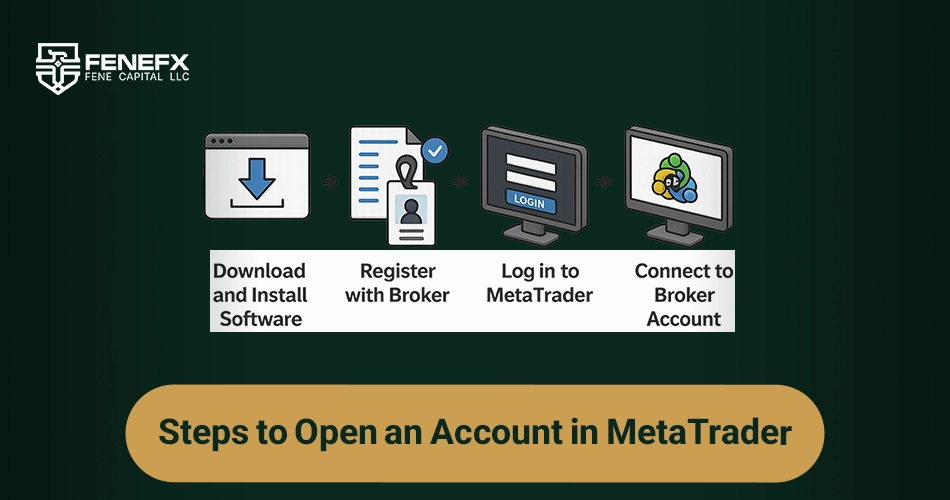
Reviewing the Steps to Open an Account in MetaTrader:
Step 1: Download and Install MetaTrader Software
Before starting with MetaTrader, you must first download and install the MetaTrader software. MetaTrader is a trading platform that you, as an active trader in the Forex market, should use. The MetaTrader software is available in two versions, MetaTrader 4 (MT4) and MetaTrader 5 (MT5), for Windows, Mac, and mobile devices with Android and iOS operating systems.
MetaTrader 4 (MT4) is more popular among Forex traders due to its simplicity, speed, and efficiency, and it is recommended if you plan to trade only in the Forex market.
MetaTrader 5 (MT5), compared to the previous version, offers more features and capabilities, enabling trading in other markets such as stocks, commodities, and more.
Downloading and Installing MetaTrader
After downloading the file, click on it to run the file. This file is typically saved with the (.exe) extension for Windows or (.dmg) for Mac. The installation process is usually simple, and you just need to confirm the default options and proceed. To install MetaTrader on your mobile, simply download the MetaTrader version from Google Play (for Android) or the App Store (for iOS), and the software will automatically install on your mobile device.
After installation, the MetaTrader icon will appear on your desktop or the home screen of your phone, allowing you to log into the software and begin the second step, which is logging into your trading account.
Step 2: Registering with Broker
Registering with Broker and receiving your user panel takes less than five minutes. You can complete the registration by simply entering your basic information such as: first name, last name, date of birth, contact number, and selecting your city and country. Finally, agree to the terms and conditions and receive a confirmation email to activate your account. After registration, you will receive your broker panel.
Once registered and after selecting your account type, the broker will provide you with a server number to connect your trading account to MetaTrader. After connecting, you can review your account information such as balance, transaction history, and more on this page.
Step 3: Logging into the Software and Applying Settings
To begin trading and using MetaTrader, after logging into the software, the main MetaTrader page will be displayed. At this stage, it is essential to apply your personal settings before making any trades to optimize your user experience. To apply your personal settings, follow these steps:
Logging into MetaTrader Software
After launching the software, the first thing you need to do on the main MetaTrader page is to log into your account. To do this, click on the (File) option from the top menu and then select (Login to Trade Account). In the window that opens, you will be asked to enter your account number and password.
User Interface Settings
In this step, after logging into your account (real or demo), you can change the background, sound, tool placement, and more based on your preferences. However, some user interface settings, such as time settings or tool configurations, need to be adjusted.
To display the correct time and date on the charts, click on the (Tools) option and select (Options). Then, in the (Charts) tab, adjust the time settings according to your time zone.
After adjusting the time and date, the next step is to add analytical tools or indicators. To use indicators, click on the (Insert) option and, based on your trading model, find or search for the required tools and indicators. Then, click on them to add them to your tools list.
Additionally, in the Tools and Options section, you can change the chart settings, including candlestick display type, colors, sizes, and more.
Step 4: Connecting MetaTrader to the Broker Account
Connecting to the broker account in MetaTrader is a step you need to take after installing and setting up the MetaTrader software and completing the initial settings. This step is very important because it connects you to your trading account and allows you to start your trading activities.
Go to the top menu of the page and select the (File) option. Then, from the dropdown menu, select (Login to Trade Account).
After selecting this option, a new window will open, asking you to enter your trading account information. In this window, first, in the (Server) section, you need to enter the broker's server. This server information was provided to you during registration or through your broker's user panel.
Next, in the (Account) section, enter your trading account number. This number was given to you during registration or in the registration confirmation email. Be sure to enter the account number carefully, as this number is similar to your identifier with the broker.
After entering the account number and password correctly, click on the (Login) button. MetaTrader will verify the information, and if everything is correct, your connection to the trading account will be established. If the connection is successful, a confirmation message will appear at the bottom of the screen indicating that you are connected to your account.
Once you have completed these steps and opened your account, you are ready to begin your trading.
Important Tips for Connecting MetaTrader to the Broker Account
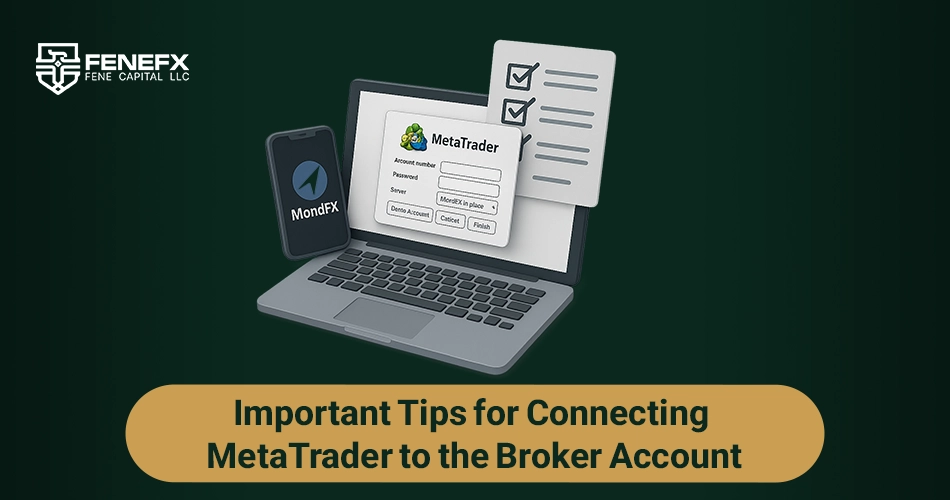
- If you are unable to connect to the broker server, ensure that you have entered the server details and account number correctly.
- If you encounter any issues when opening your account, contact broker support to receive the necessary guidance.
- If you intend to log into your live account, you must enter the account number and password that you received during registration. If you want to use a demo account, select the (Demo Account) option and configure the account settings. To complete the process, you need to enter your account number, password, and sometimes your email and phone number to finalize the connection to your account. After entering the information, click on the (Finish).
Comments
Short and to the point, exactly what I needed.
Total beginner here — didn't even know demo and live accounts used different servers. This cleared it right up, thank you.
Could you do a follow-up on connecting a prop firm account specifically? The investor password part still confuses me.
Took me an embarrassing 45 minutes to find the right server name my first time. Turns out it was in the welcome email the whole time.
One thing the guide skips: MT4 and MT5 logins aren't interchangeable. I've seen so many people install MT5, try their MT4 credentials, then blame the broker.